Concept 4: HTML Lists
HTML Lists
🎯 What you'll learn
- How to create ordered lists (numbered lists)
- How to create unordered lists (bullet lists)
- Different ways to style your lists
- How to add links to list items
- When to use each type of list
📋 Before you start
Make sure you:
- Have EduBlocks open in your browser
- Completed the previous HTML lessons
- Know how to drag and connect blocks
- Remember how to add text to blocks
ℹ️ HTML lists help you organize information on your webpage. Just like making a shopping list or writing down your favorite games, HTML lists make your content easy to read and understand!
📚 Two Types of Lists
In HTML, you can create two main types of lists:
- Ordered lists - These use numbers (1, 2, 3...)
- Unordered lists - These use bullet points (•)
💡 Tip Think of ordered lists like steps in a recipe (where order matters) and unordered lists like a shopping list (where order doesn't matter).
🧩 List Blocks in EduBlocks
| Block | Definition |
|---|---|
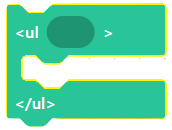 |
Unordered list block - Creates a list with bullet points |
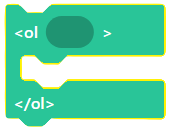 |
Ordered list block - Creates a list with numbers |
🔢 Ordered Lists
Ordered lists are perfect when the order of items matters, like:
- Steps in a game tutorial
- Instructions for building something
- Rankings or leaderboards
To create an ordered list:
- Drag the
<ol>block (ordered list) - Add
<li>blocks (list items) inside it - Type your text in each
<li>block
📝 Note The
<li>tag stands for "list item". Each item in your list needs its own<li>block!
🎨 How it Works
| Block | Output |
|---|---|
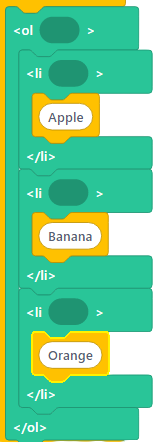 |
One. Apple2. Banana3. Orange |
The browser automatically adds the numbers for you!
🔤 Alphabetical Ordering
Want to use letters instead of numbers? You can change your ordered list to use:
- Capital letters (A, B, C...)
- Lowercase letters (a, b, c...)
Just add a type attribute to your <ol> block!
Capital Letters (A, B, C)
| Block | Output |
|---|---|
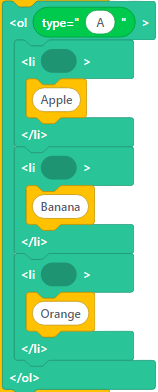 |
A. AppleB. BananaC. Orange |
Set type="A" in your ordered list block.
Lowercase Letters (a, b, c)
| Block | Output |
|---|---|
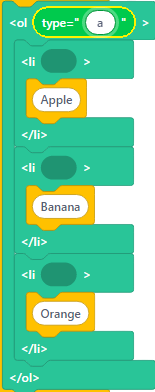 |
a. Appleb. Bananac. Orange |
Set type="a" in your ordered list block.
🏛️ Roman Numerals
Want to make your list look fancy? Use Roman numerals like the ancient Romans did!
| Block | Output |
|---|---|
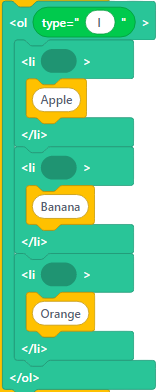 |
I. AppleII. BananaIII. Orange |
Set type="I" in your ordered list block.
💡 Tip Roman numerals are great for:
- Chapter numbers in a story
- Important rules or laws
- Making your list look extra special!
• Unordered Lists
Unordered lists are perfect when the order doesn't matter, like:
- Your favorite games
- Things to bring to school
- Pizza toppings you like
To create an unordered list:
- Drag the
<ul>block (unordered list) - Add
<li>blocks inside it - Type your text in each
<li>block
The browser automatically adds bullet points (•) for you!
🎮 Example: Favorite Websites
| Block | Output |
|---|---|
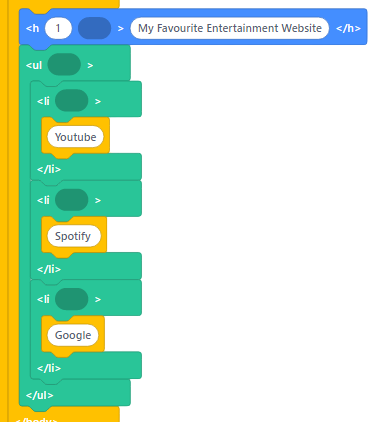 |
My favourite entertainment website• youtube• Spotify• Google |
🎨 Customizing Bullet Points
You can change how your bullet points look using CSS! Here are your options:
| Style | What it looks like | Description |
|---|---|---|
| disc | • | A filled circle (default) |
| circle | ○ | An empty circle |
| square | ■ | A filled square |
| none | (nothing) | No bullet point at all |
📝 Note To change bullet styles, you'll need to add CSS to your
<ul>block. This is like choosing different markers to draw with!
🔗 Adding Links to Lists
Want to make your list items clickable? You can add links inside your list items!
Here's how:
- Create your list (
<ul>or<ol>) - Add list items (
<li>) - Inside each
<li>, add an anchor tag (<a>) - Set the link's
hrefto the website address
🌐 Example: Clickable Website List
| Block | Output |
|---|---|
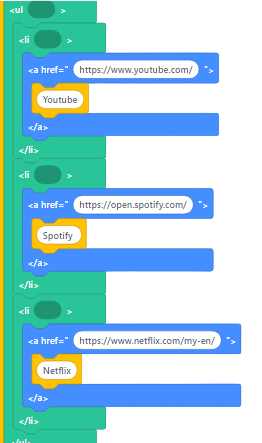 |
My favourite entertainment website• youtube (linked)• Spotify (linked)• Google (linked) |
Each item becomes a clickable link that takes you to that website!
💡 Tip This is super useful for:
- Creating a navigation menu
- Making a list of resources
- Building a directory of favorite sites
🛠️ Troubleshooting Tips
Having problems with your lists? Check these common issues:
-
Lists not showing?
- Make sure you have
<li>blocks inside your<ul>or<ol>blocks
- Make sure you have
-
Wrong numbers or letters?
- Check your
typeattribute in the<ol>block
- Check your
-
Links not working?
- Make sure your
hrefstarts withhttp://orhttps://
- Make sure your
-
Bullets look weird?
- Check your CSS list-style property
📝 Summary
Before watching the video, remember:
- Ordered lists (
<ol>) create numbered lists - Unordered lists (
<ul>) create bullet point lists - Both types need list items (
<li>) inside them - You can customize how lists look with the
typeattribute - You can add links inside list items for clickable lists
Video
🎯 Practice Time!
After watching the video, try these challenges:
- Easy: Create a list of your 5 favorite foods using an unordered list
- Medium: Make a numbered list of steps to make a sandwich
- Hard: Create a list of your favorite websites with clickable links
- Expert: Make an ordered list using Roman numerals for the chapters of a story
📝 Note Remember: Lists help organize your content and make it easier for people to read your webpage. The more you practice, the better you'll get at choosing the right type of list!