Concept 14: Vibe Coding with Github
Understanding GitHub and Version Control
🎯 Learning Objectives
By the end of this lesson, you will:
- Understand what version control is and why it's important
- Learn how GitHub helps developers collaborate
- Master basic Git commands for managing your code
- Clone a repository using GitHub Desktop
- Open and work with projects in Trae IDE
What is Version Control? 🕰️
ℹ️ Info Version control saves snapshots of your files over time - like a time machine for your code! Track changes, collaborate easily, fix mistakes, and experiment safely.
What is GitHub? 🐙
ℹ️ Info GitHub is a social network for code where developers store projects, collaborate, and get feedback. It's like Google Drive, but specially designed for programming projects with built-in version control, team tools, and free hosting.
Key Concepts in Git and GitHub 📚
💡 These are the most important words you'll use when working with GitHub. Learn them well!
Repository (Repo) 📁
A special folder that stores your code and tracks every change. Can be local (your computer) or remote (on GitHub).
Commit 📸
A snapshot of your project at a moment in time. Includes a message describing changes and can be undone.
Clone 🔄
Making a copy of a GitHub project to your computer. Downloads all files and history while staying connected to the original.
Benefits of Using GitHub 🌟
Collaboration 🤝
Team coding where multiple people work on the same project, share code easily, and resolve conflicts when two people edit the same file.
Project Management 📋
Track issues, organize tasks with project boards, set goals, and release versions.
Code Quality ✨
Get feedback through code reviews, use auto-testing to catch mistakes, and learn best practices from experienced developers.
Security 🔒
Control who can access your code, verify who made each change, run security checks automatically, and keep backups in the cloud.
Common Git Commands 💻
note Don't worry about memorizing all these commands right away! Start with the basic ones and learn more as you need them.
Basic Commands 🎮
These are the commands you'll use most often:
perl
# Start tracking a project with Git
git init

# See what's changed in your project
git status

# Add files to be saved
git add filename.txt    # Add one file
git add .              # Add all files

# Save your changes with a message
git commit -m "Fixed the bug in my game"

# See the history of your project
git log
Working with GitHub 🌐
Commands for sharing your code online:
perl
# Copy a project from GitHub to your computer
git clone https://github.com/username/repository.git

# Connect your project to GitHub
git remote add origin https://github.com/username/repository.git

# Send your changes to GitHub
git push origin main

# Get updates from GitHub
git pull origin main
Managing Files 📂
Commands for organizing your project:
bash
# Undo changes to a file
git restore filename.txt

# Stop tracking a file
git rm filename.txt

# Rename or move files
git mv oldname.txt newname.txt
Checking Your Work 🔍
Commands to see what's happening:
perl
# See what you've changed
git diff

# See what's ready to commit
git diff --staged

# See a pretty history
git log --oneline --graph
Best Practices 💡
💡 Follow these rules to become a Git pro!
- Always run
git statusbefore committing- Write clear commit messages
- Pull before you push
- Make small, frequent commits
- Keep local files synced with GitHub
Setting Up GitHub Desktop 🖥️
ℹ️ Info GitHub Desktop is a friendly app that makes using Git super easy! No need to remember commands - just click buttons!
Installation Process 📥
- Visit View on GitHub
https://github.com/apps/desktop
apps/desktop - Click "Download now" (Windows or macOS version)
Setup Steps 🚀
Step One: Install the App
- Windows: Run the .exe file and follow prompts
- Mac: Open the .dmg file and drag to Applications folder
Step 2: Launch GitHub Desktop
Launch from Start menu (Windows) or Applications folder (Mac)
Step 3: Sign In
Sign in with your GitHub account (or create one if needed)
Cloning a Repository Using GitHub Desktop 🔄
💡 Tip Cloning means copying a project from GitHub to your computer so you can work on it!
Method 1: Cloning from GitHub.com 🌐
Step One: Find Your Project
- Go to GitHub.com
- Navigate to the repository you want to clone
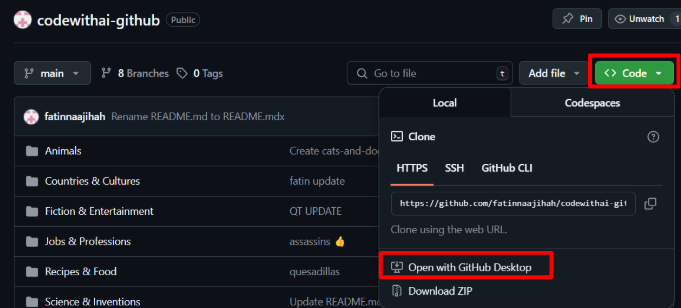
Step 2: Start the Clone
- Look for the green "Code" button
- Click it to see options
- Choose "Open with GitHub Desktop"
Step 3: Choose Where to Save
- GitHub Desktop opens automatically
- Click "Choose..." to pick a folder
- Select where you want to save the project
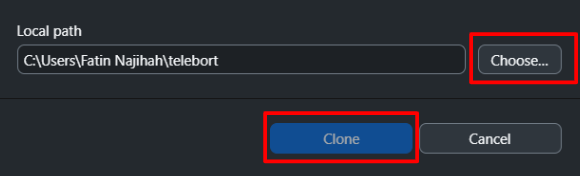
Step 4: Download the Project
- Click the "Clone" button
- Watch as GitHub Desktop downloads everything
- You're ready to code!
Method 2: Cloning from GitHub Desktop App 💻
Step One: Open GitHub Desktop
- Launch the app if it's not already running
Step 2: Find the Clone Option
- Click "File" in the top menu
- Select "Clone Repository"
- Or use the shortcut: Ctrl+Shift+O (Windows) or Cmd+Shift+O (Mac)
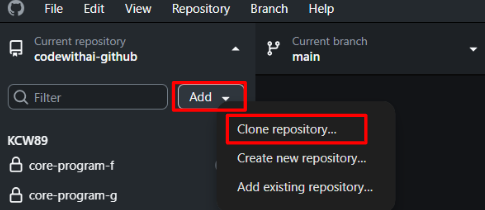
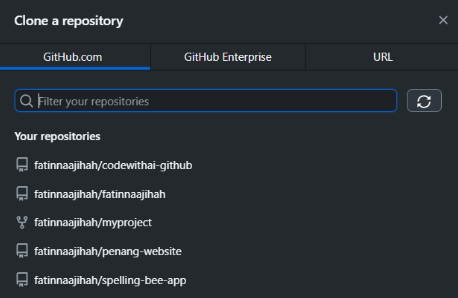
Step 3: Pick Your Repository
You have two choices:
- GitHub tab: See all your repositories
- URL tab: Paste a link like
https://github.com/username/repository
Step 4: Choose Save Location
- Pick where to save on your computer
- Make sure you remember this location!
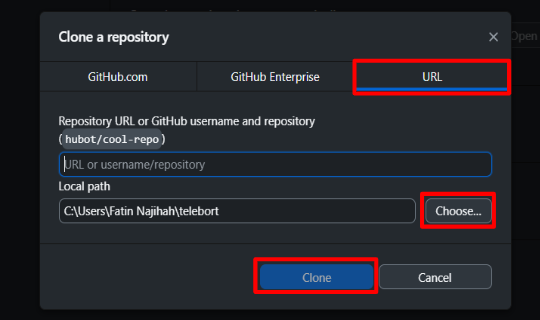
Step 5: Start Cloning
- Click the "Clone" button
- Wait for the magic to happen
- Your project is now on your computer!
Opening Your Cloned Repository in Trae IDE 🚀
ℹ️ Info Trae IDE is where you'll write and edit your code. Let's open your cloned project!
Launch and Access 🎯
Step One: Start Trae IDE
For Windows:
- Check your Start menu
- Or look for the desktop shortcut
For macOS:
- Open your Applications folder
- Click on Trae
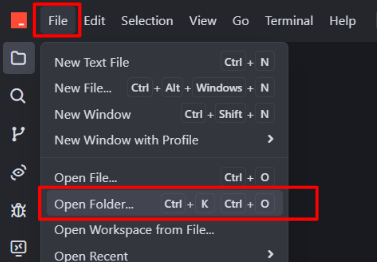
Step 2: Open a Folder
You have two ways:
- Click "File" -> "Open Folder" in the menu
- Use the keyboard shortcut:
- Windows: Ctrl+O
- Mac: Cmd+O
Navigate and Open 📂
Step One: Find Your Cloned Project
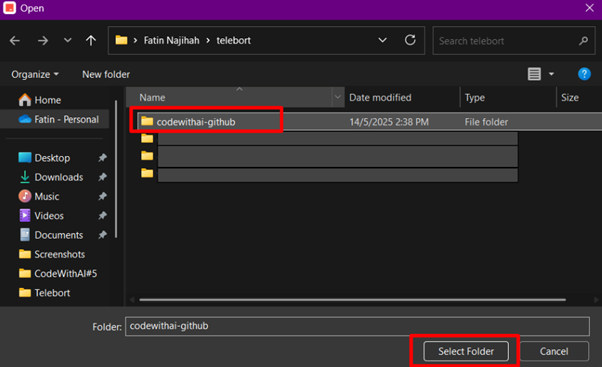
- Browse to where you saved your repository
- Usually in Documents or the folder you chose
- Look for a folder with your project's name
Step 2: Select and Open
- Click once on your project folder
- Click "Open" or "Select Folder"
- Watch as Trae loads your project
- See all your files in the Explorer panel on the left
💡 Tip Now you're ready to start coding! Your project is connected to GitHub and open in Trae IDE.
🎯 Quick Summary
You've learned how to:
- ✅ Understand version control and why it's important
- ✅ Use GitHub to store and share your code
- ✅ Master basic Git commands
- ✅ Install and set up GitHub Desktop
- ✅ Clone repositories two different ways
- ✅ Open projects in Trae IDE
🚀 Practice Time!
Try these exercises to master GitHub:
-
Create Your First Repository
- Make a new repository on GitHub
- Clone it to your computer
- Add a simple "Hello World" file
- Commit and push your changes
-
Explore a Popular Project
- Find an interesting project on GitHub
- Clone it using GitHub Desktop
- Open it in Trae IDE
- Look at the code structure
-
Practice Git Commands
- Create a test folder
- Initialize it with
git init - Make some files and practice adding and committing
- Try different Git commands we learned
Remember: The best way to learn GitHub is by using it! Don't be afraid to experiment - you can always undo changes or start fresh.